How to Set Up an Ergonomic Home Office in 2026
Monitor height, desk depth, chair adjustments, and lighting — a complete guide to setting up a home office that won't wreck your back.

Your Home Office Is Probably Hurting You
Most people who work from home have a setup that evolved by accident. A laptop on a kitchen table. A dining chair that seemed fine for the first week. A monitor positioned wherever it happened to land. And after a few months, the neck pain starts, the lower back aches become constant, and you find yourself shifting in your seat every ten minutes trying to find a position that does not hurt.
I have spent years testing home office furniture, standing desks, gaming chairs repurposed as office chairs, monitor arms, keyboards, and everything in between. What I have learned is that the furniture itself is only half the equation. How you position it matters just as much, and most people get the positioning wrong because nobody teaches you this stuff.
This guide walks through every element of an ergonomic home office setup, from the ground up. It is not about buying expensive equipment, it is about arranging what you have (or plan to buy) so that your body is supported rather than strained. Some of these adjustments cost nothing. Others might prompt you to rethink your desk or chair. All of them will make a measurable difference if you spend four or more hours a day at your workstation.
Start With Your Chair: It Is the Foundation
Everything in your workstation flows from your seated position. If your chair is wrong, no amount of monitor adjustment or keyboard repositioning will fix the downstream problems. Here is what correct chair ergonomics actually look like.
Seat height. Your feet should be flat on the floor with your thighs roughly parallel to the ground. If your chair is too high and your feet dangle, you lose circulation in your legs and your lower back compensates by rounding. If it is too low, your knees rise above your hips and your hip flexors tighten. Most people set their chair too high because it feels more authoritative, lower it until your feet are genuinely flat.
Seat depth. There should be a two to three finger gap between the front edge of your seat and the back of your knees. If the seat pan is too deep, you either slide forward (losing back support) or the edge presses into the backs of your knees and restricts blood flow. Many chairs have adjustable seat depth, use it.
Lumbar support. Your lower back has a natural inward curve (lordosis), and your chair needs to support it. Without lumbar support, you will unconsciously slump into a C-shaped posture that compresses your spinal discs and fatigues your back muscles. Adjust the lumbar support so it fits into the natural curve of your lower back, it should feel supportive, not like it is pushing you forward.
Armrests. Your elbows should rest at roughly 90 degrees with your forearms parallel to the floor. Armrests that are too high push your shoulders up toward your ears, causing neck and trapezius tension. Armrests that are too low cause you to lean to one side or slouch to reach them. If your armrests cannot be adjusted to the right height, it is better to remove them entirely than to use them at the wrong height.
If you are shopping for a chair, gaming chairs have become a surprisingly viable option for long work sessions. The best gaming chairs now offer adjustable lumbar support, 4D armrests, and recline mechanisms that rival traditional ergonomic office chairs, often at a lower price. I cover specific recommendations in our gaming chair buying guide.
Monitor Height and Distance: The Most Common Mistake
Monitor positioning is where most home offices go wrong, and it is the primary cause of the neck and eye strain that remote workers complain about.
Height. The top edge of your screen should be at or slightly below eye level. When you look straight ahead in a relaxed posture, your eyes should naturally land on the upper third of the screen. If you are looking up at your monitor, your neck is extending backward. If you are looking down significantly, your head tilts forward and your neck muscles work overtime to support its weight, roughly 10-12 pounds that your spine was not designed to hold at an angle.
Distance. Your monitor should be roughly an arm's length away, about 20 to 26 inches from your eyes. Too close and your eyes strain to focus. Too far and you unconsciously lean forward, negating all your careful chair positioning. A simple test: extend your arm straight out from your seated position. Your fingertips should just about touch the screen.
Tilt. Tilt your monitor back approximately 10 to 20 degrees. This positions the screen perpendicular to your natural line of sight and reduces glare from overhead lighting.
Laptop users, this is critical. If you use a laptop as your primary workstation, you have a fundamental ergonomic conflict: the screen and keyboard are attached, so you cannot position both correctly at the same time. A screen at the right height means a keyboard at the wrong height, and vice versa. The solution is a laptop stand or external monitor paired with an external keyboard and mouse. This single change eliminates the hunched-over-laptop posture that causes more neck problems than any other home office habit.
Dual monitors. If you use two monitors equally, position them symmetrically so the inner edges meet directly in front of you. If you have a primary and secondary monitor, center the primary directly in front of you and angle the secondary to one side. Do not place your primary monitor off-center, you will spend the entire day with your head rotated slightly, and your neck will remind you about it.
Desk Setup: Height, Depth, and What Goes Where
Desk height. When seated with your chair properly adjusted, your desk surface should be at approximately elbow height. Your forearms should rest on the desk (or hover just above it) with your elbows at roughly 90 degrees and your shoulders relaxed, not hunched up. Standard desks are typically 28 to 30 inches high, which works for people around 5'8" to 5'11". If you are shorter or taller, a height-adjustable desk is not a luxury, it is an ergonomic necessity.
This is one of the strongest arguments for a standing desk. Beyond the ability to alternate between sitting and standing (which is genuinely beneficial for reducing prolonged static posture), adjustable desks let you dial in the exact height for your body. Our best standing desks guide covers the top options, and if you are weighing a full desk versus a converter, our standing desk vs converter comparison breaks down the trade-offs.
Desk depth. You need enough depth to place your monitor at the correct distance (20-26 inches) while still having space for your keyboard, mouse, and forearms. A minimum depth of 24 inches is workable; 30 inches is ideal. If your desk is shallow, a monitor arm that clamps to the back edge can push your screen back and reclaim desk space.
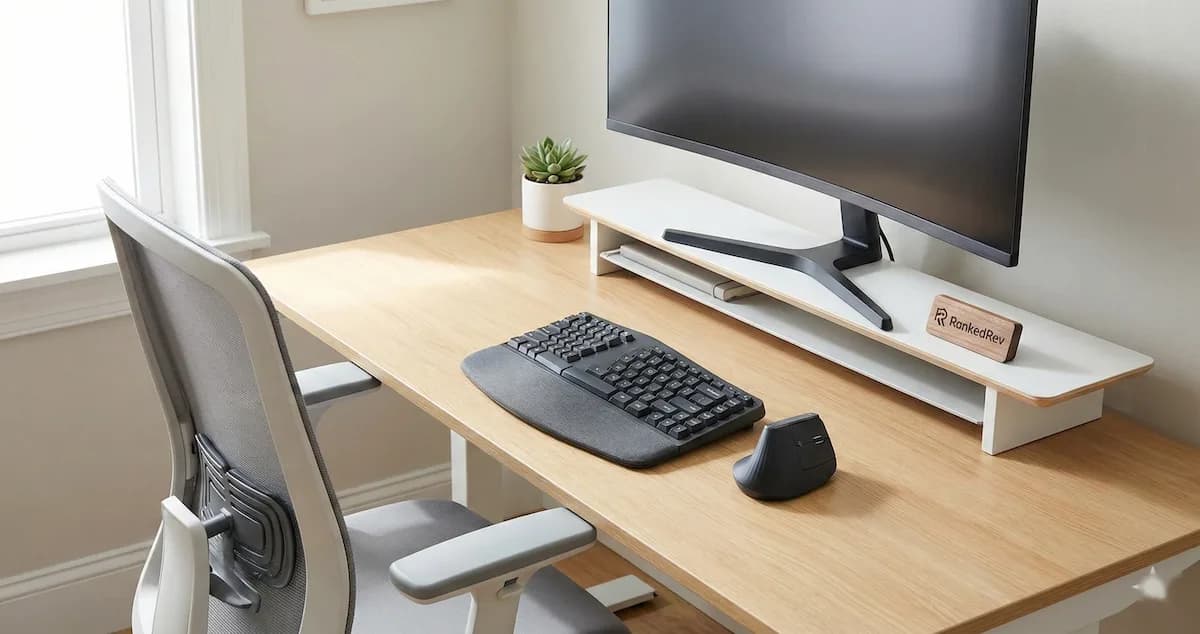
Keyboard and mouse placement. Your keyboard should be directly in front of you, positioned so your wrists are straight, not angled up or down. If your desk does not have a keyboard tray, the desk surface itself becomes your keyboard platform, which means your desk height needs to account for the keyboard's thickness. A wrist rest can help, but it should support your palms during pauses, not while actively typing, resting your wrists on a pad while typing actually increases carpal tunnel pressure.
Your mouse should be immediately adjacent to your keyboard at the same height, close enough that you do not have to reach for it. Reaching for a mouse that is too far to the side is a common cause of shoulder and forearm strain that develops gradually and becomes chronic.
Lighting: The Overlooked Ergonomic Factor
Bad lighting does not cause the dramatic pain that a poorly adjusted chair does, but it creates a low-grade strain that accumulates into headaches, eye fatigue, and reduced productivity.
Eliminate screen glare. Position your monitor perpendicular to windows, not facing them and not with your back to them. Facing a window creates a brightness differential that forces your pupils to constantly adjust. Having a window behind you creates screen glare. Perpendicular placement gives you natural light without direct interference.
Layer your lighting. A single overhead light creates harsh shadows and uneven illumination. Combine ambient overhead lighting with a desk lamp that illuminates your work surface. LED desk lamps with adjustable color temperature are ideal, warmer light (3000K) for general work, cooler light (4000-5000K) for tasks requiring focus and detail.
Match screen brightness to ambient lighting. Your monitor should not be the brightest thing in the room, nor should it be dim relative to your surroundings. The goal is minimal contrast between the screen and its surrounding environment. Most monitors have automatic brightness sensors, turn them on.
Follow the 20-20-20 rule for eye strain. Every 20 minutes, look at something 20 feet away for 20 seconds. This relaxes the ciliary muscles in your eyes that contract to focus on near objects. It sounds trivial, but it is one of the most evidence-supported recommendations from the American Academy of Ophthalmology for reducing digital eye strain.
Break Scheduling: Movement Is Non-Negotiable
You can have the most perfectly adjusted workstation in the world, and it will still cause problems if you sit in it for eight hours without moving. The human body was not designed for sustained static posture in any position, sitting, standing, or otherwise.
Alternate sitting and standing. If you have a standing desk, alternate between positions every 30 to 60 minutes. Standing all day is not the goal and comes with its own set of problems (lower extremity fatigue, varicose veins, foot pain). The benefit comes from the position change itself, not from standing per se. Our standing desk buying guide covers this in more detail.
Take micro-breaks every 30 minutes. Stand up, stretch, walk to another room, or simply shift your position. These do not need to be long, 30 to 60 seconds is enough to reset your posture and restore blood flow. Set a timer if you lose track of time during focused work.
Take a longer break every 90 minutes. Walk for five to ten minutes. Get water. Do a few stretches. The 90-minute cycle aligns with your body's ultradian rhythm, natural fluctuations in alertness and focus that research has linked to sustained cognitive performance.
Stretch your hip flexors and chest. These are the two muscle groups that shorten most aggressively from prolonged sitting. Tight hip flexors pull your pelvis into an anterior tilt that increases lower back strain. A tight chest pulls your shoulders forward into the rounded posture that causes upper back and neck pain. A simple doorway stretch for the chest and a kneeling hip flexor stretch, held for 30 seconds each, can counteract hours of sitting.
The Complete Checklist
Here is a quick reference you can use to audit your current setup or build a new one.
Chair:
- Feet flat on the floor, thighs parallel to the ground
- Two to three finger gap between seat edge and back of knees
- Lumbar support fitted to your lower back curve
- Armrests at elbow height, shoulders relaxed
Monitor:
- Top of screen at or slightly below eye level
- Screen at arm's length distance (20-26 inches)
- Tilted back 10-20 degrees
- Positioned perpendicular to windows
Desk:
- Surface at elbow height when seated
- Minimum 24 inches deep (30 preferred)
- Keyboard directly centered, wrists straight
- Mouse adjacent to keyboard, not reaching
Lighting:
- No direct glare on screen
- Layered ambient plus task lighting
- Screen brightness matched to room
Movement:
- Sit/stand alternation every 30-60 minutes
- Micro-breaks every 30 minutes
- Longer breaks every 90 minutes
- Daily hip flexor and chest stretches
Small Changes, Big Differences
The most common reaction I get when people properly adjust their workstation for the first time is surprise, surprise at how much better they feel after just a few days, and surprise that such small adjustments make such a noticeable difference. Lowering your chair an inch. Raising your monitor three inches. Pulling your keyboard closer. None of these changes are dramatic or expensive, but the cumulative effect on your comfort, posture, and energy level is real.
If your setup needs more significant changes, a new chair, a standing desk, better lighting, that is worth the investment too. You spend more time at your desk than almost anywhere else. Making that space work with your body instead of against it is one of the highest-return improvements you can make for your work-from-home life.
Frequently Asked Questions
How much should I spend on an ergonomic office setup?
You do not need to spend a fortune. The positioning and adjustment principles in this guide are free. If you need new furniture, a good standing desk starts around $350-400 on sale (see our best standing desks recommendations), and a solid gaming chair with ergonomic features starts around $300-400 (see our best gaming chairs guide). An external keyboard, mouse, and laptop stand together cost under $100. Prioritize chair and monitor position first, those deliver the biggest ergonomic returns.
Is a standing desk actually necessary for good ergonomics?
Not strictly necessary, but strongly beneficial. The primary ergonomic advantage of a standing desk is not standing itself, it is the ability to change positions throughout the day. Alternating between sitting and standing reduces the cumulative load on any single set of muscles and joints. That said, a well-adjusted sitting-only workstation with regular movement breaks is far better than a standing desk used incorrectly.
How long does it take to notice a difference after adjusting my setup?
Most people notice reduced neck and shoulder tension within two to three days of correcting monitor height. Lower back improvements from chair adjustments typically take a week or two as your muscles adapt to the new posture. Eye strain improvements from lighting changes are often immediate. Be patient with the adjustment period, your body has adapted to your old setup, and it needs time to adapt to the correct one.
You Might Also Like
Protein Timing and Dosing: What the Science Actually Says
 David Nakamura
Shared vs VPS vs Dedicated Hosting: How to Choose
 Sarah Chen
Travel eSIM vs International Roaming vs Local SIM Cards
 James Mitchell